How to Pick Software Without Getting Burned
Buying software is a lot like buying a used car. The paint job looks great, the salesman is friendly, and you don’t find out about the weird rattle until you’re three months in and the return window has slammed shut.
I taught myself this stuff the old way — books, trial, and a whole lot of error, back when nobody showed you anything — and after thirty-plus years of helping people untangle their technology, I can tell you the most expensive software problems don’t come from bad software. They come from good software that was wrong for the person who bought it.
Let’s fix that.
Start With the Problem, Not the Product
Before you compare a single feature, write down the actual job you need done. One sentence. “I need to send invoices and get paid.” “I need to edit family photos.” That’s it.
Why does this matter? Because software companies are wonderful at convincing you that you need things you don’t. I see this in my own kitchen. I love to cook, and I own a drawer full of gadgets that each do exactly one thing — the avocado slicer, the strawberry huller, the garlic press shaped like a rocking chair. You know what I actually reach for every single night? One good knife. A client of mine once bought the software version of that gadget drawer: a project management suite with time tracking, Gantt charts, and resource forecasting. Her actual need? A shared to-do list with her one employee.
If a feature doesn’t serve the sentence you wrote down, it’s not a selling point. It’s the strawberry huller. It’s clutter you’ll pay for.
Use Free Trials Like a Test Drive, Not a Tour
Most software offers a free trial, and most people waste it. They poke around for ten minutes, think “seems nice,” and pull out the credit card.
Here’s the better way. During the trial, do your real work in it. Import your actual files. Send an actual invoice. If it’s a photo editor, edit the photos from your cousin’s wedding, not the polished sample images they hand you.
Two things to watch for:
Does the trial require a credit card? That’s not automatically evil, but set a phone reminder for two days before it ends. Companies count on you forgetting. It’s a business model.
Can you get your stuff back out? Before the trial ends, try exporting your data. If leaving is hard, that’s not a product feature. That’s a fence.
Reading Reviews Without Getting Played
Star ratings are nearly useless on their own. A five-star review that says “Great app!!!” tells you nothing. Here’s what actually helps:
Read the three-star reviews first. Those are usually the honest ones — people who liked some things and hated others, and took the time to explain both. The one-star reviews are often just someone having a bad day, and plenty of glowing five-star reviews were, let’s say, encouraged.
Look for reviews from people like you. A review from a 200-person company complaining about “API limitations” means nothing if you’re a retiree organizing recipes. Find the reviewer who sounds like your situation.
Check the dates. Software changes fast. A rave review from four years ago might describe a product that’s since tripled its price and buried its best features behind a higher tier. Which brings me to…
Pricing Red Flags I’ve Learned to Spot
I’ve watched people waste real money on every one of these, so consider this your uncle Michael pulling you aside at the family barbecue:
The vanishing price tag. If you can’t find the price without entering your email or “requesting a quote,” expect a sales call and a bigger number than you hoped.
The teaser tier. A cheap plan that’s missing the one feature everyone actually needs — that feature always lives one tier up. Do the math on the tier you’d really use.
Monthly-only pricing on something you’ll use forever. Sometimes a one-time-purchase alternative exists and nobody advertises it, because subscriptions are where the money is.
”Limited time” pressure. Legitimate software will still be for sale next week. If the countdown timer resets when you reload the page, you have your answer about their honesty.
None of this means subscriptions or sales are scams. It just means you should walk around the car, kick the tires, and check under the hood before you sign anything.
When You Want a Second Opinion
Sometimes the smartest move is having someone with no commission on the line look it over with you. That’s a big part of what I do — calm, no-pressure guidance, in plain English.
If you’re weighing a software decision and want a second set of eyes, you can book a one-on-one session with me at indigosolutionsllc.com. Bring your questions. I’ll bring the flashlight for looking under the hood.
AI Privacy Concerns: What Really Happens to What You Type
Whenever I show someone ChatGPT or Claude for the first time, there’s a moment — usually right before they type their first question — where they pause and ask: “Wait. Who sees this?”
Great instinct. Hold onto it.
I hold a cybersecurity certification through Google, though honestly, most of what I know about protecting people’s information came from 30-plus years of watching what goes wrong when we don’t. I use AI tools every day, and my answer isn’t “panic” or “it’s fine.” It’s the same advice I’d give about anything you say in public: be yourself, but watch what you hand over. Let me explain what’s actually going on.
Where does your typing go?
When you chat with an AI tool, your words don’t stay on your computer. They travel to the company’s servers — OpenAI’s, Anthropic’s, Google’s — where the AI does its thinking and sends an answer back.
Think of it like mailing a letter to a very fast pen pal. The pen pal is professional, and the envelope is sealed in transit. But the letter leaves your house. That’s the key mental shift.
What happens next depends on the company and your settings. Generally:
Your conversations are stored in your account history, like sent mail.
Some companies may use conversations to improve their AI — meaning humans might review samples, and your words could help train future versions. Many tools let you turn this off; it’s often on by default for free accounts.
Business and paid plans usually have stricter promises about not training on your data.
None of this means someone is reading your chats over morning coffee. It means your words become records that live on someone else’s computer. Treat them accordingly.
The never-paste list
Here’s the list I give every client. Print it, tape it near the monitor, no shame in that. Never put these into a chatbot:
Passwords or PINs. No tool needs them, ever. Anything asking for one is a scam, full stop.
Social Security numbers — yours or anyone else’s.
Full financial details. Card numbers, account numbers, routing numbers.
Medical records with names attached. Asking general health questions is fine. Pasting in a document with your name, birth date, and diagnosis is not.
Other people’s private information. Your customer list, your friend’s messy divorce details, an employee’s personnel file. It’s not yours to share with a robot.
Anything confidential from work. A client of mine once nearly pasted a whole unsigned business contract in for “a quick summary.” We paused, blanked out the names and dollar figures first, and then summarized. Same benefit, none of the exposure.
The rule of thumb: if you wouldn’t put it on a postcard, don’t put it in a chatbot. I think of it the way I run my kitchen: raw chicken gets its own cutting board, no exceptions, no matter how careful I’m feeling that day. Some things simply never touch the chat box. You can almost always get the AI’s help by describing your situation generally instead of pasting the raw document.
Settings worth checking (two minutes, tops)
Every major AI tool has privacy controls tucked into its settings. The names shift around, but look for:
”Improve the model for everyone” or “model training” — this is the switch that decides whether your chats can be used for training. Turn it off if that bothers you. In ChatGPT it’s under Settings, then Data Controls. Claude and Gemini have similar options.
Chat history controls. You can usually delete individual conversations or your whole history. Do a little cleanup now and then, like shredding old bank statements.
Temporary or incognito chat. Several tools now offer a mode where the conversation isn’t saved. Nice for anything you’d rather not have on the record.
Your account security itself. A strong, unique password and two-factor authentication protect your chat history the same way they protect your email. I’m an Apple guy — iPhone, Mac, iCloud — so I let iCloud Keychain generate and remember mine; on Windows or Android, any reputable password manager does the same job. Your AI account is only as private as its front door.
The calm takeaway
AI chatbots are not surveillance vans, and they’re not confessionals either. They’re services — useful, powerful, and run by companies with servers, policies, and settings.
Use them freely for the everyday stuff: drafting, learning, brainstorming, planning. Keep the crown jewels — passwords, identity numbers, other people’s secrets — out of the chat box. Flip the training switch if you want to. Then get on with enjoying the tools.
If you’d like someone to sit with you and check these settings on your own accounts — calmly, in plain English — I’d be glad to. Book a one-on-one session at indigosolutionsllc.com.
Automation & Workflow Tools: Let Your Computer Do the Boring Stuff
“Automation” sounds like something that happens in a car factory, with robot arms and sparks flying. But you’ve probably been automating for years without calling it that. Ever set a coffee maker to brew at 6 a.m.? Congratulations — you’re an automation engineer.
In plain English, automation just means: teaching your computer to do a repetitive task so you don’t have to. After 30-some years in IT, I can tell you the best automations are boring, invisible, and small. Let me show you where to start — and, just as importantly, where to stop.
Automations you can set up this week
Email filters. This is the gateway automation. Every email program — Gmail, Outlook, the works — lets you make rules like “anything from this newsletter skips my inbox and goes into a folder called Reading.” Ten minutes of setup, and your inbox stops feeling like a junk drawer someone keeps shaking.
I set up filters for a client who was drowning in store promotions mixed with real messages from her doctor’s office. She told me later it was the first time in years she trusted her inbox. That’s the goal: not fancy, just calm.
Calendar scheduling links. If you’ve ever played the “does Tuesday work? No? How about Thursday?” game over six emails, a scheduling tool (like Calendly or the booking feature built into Google and Outlook calendars) ends it. You share a link, people pick from times you’ve already approved, and it lands on your calendar. It’s like giving people a menu instead of asking “so… what do you feel like eating?”
Recurring reminders and auto-pay. Bills on auto-pay, a repeating reminder to change the furnace filter, a yearly nudge that the car registration is due. The Reminders app on your iPhone does this beautifully, free — and it syncs through iCloud to your Mac and iPad, so the nudge finds you wherever you are. (On Android, Google Tasks or Keep does the same job.)
Text shortcuts. Type “addr” and your phone expands it to your full mailing address. Both iPhones and Androids do this out of the box. Tiny, but it adds up — like keeping the good scissors in a drawer you can actually find.
When automation saves time (the honest math)
Here’s my rule of thumb, and it’s saved clients from many rabbit holes:
Automate things that are frequent, repetitive, and identical every time.
Sorting newsletters? Identical every time. Great candidate. Paying the water bill? Same amount, same day, same place. Automate it.
The payoff formula is simple: if a task takes you two minutes and happens every day, that’s over 12 hours a year. Spend twenty minutes automating it and you’ve made a phenomenal trade.
When automation quietly adds complexity
Now the part the productivity influencers won’t tell you: every automation is a little machine you now own. I keep a garden, and the garden taught me this lesson long before computers did: nothing you plant tends itself. Skip the weeding for a season and see what you get. Automations are the same — they need occasional checking, and when they break, they break silently.
Skip automating when:
The task varies every time. If each instance needs judgment — replying to real emails from real humans, for example — automation just creates polite-sounding mistakes at scale.
It’s rare. Don’t spend an hour automating something you do twice a year. That’s building a garage for a bicycle.
Failure is expensive. Auto-pay on a fixed bill? Wonderful. Auto-forwarding financial documents somewhere? Now a single typo works around the clock on your behalf. Be careful where you point these things.
You’re chaining tools together. Fancy platforms can connect app A to app B to app C. Neat — until app B changes something and your chain breaks in silence. If you can’t easily tell when an automation has failed, think twice.
I tested one of those elaborate multi-app workflows myself once. It worked great for a month, then broke while I wasn’t looking, and I only noticed when things quietly stopped arriving. Lesson learned: simple automations fail loudly or not at all. Complicated ones fail on tiptoe.
Start with one
Pick your most annoying repetitive chore. Just one. Set up a filter, a scheduling link, or an auto-pay. Live with it for two weeks. Then, maybe, add another.
Automation should feel like a helpful housemate, not a second job managing the robots.
If you’d like help picking your first automation — or untangling one that’s gotten away from you — book a one-on-one session at indigosolutionsllc.com. We’ll keep it calm and keep it simple.
AI for Small Business: Practical Wins Without the Hype
Every small business owner I talk to lately asks me the same question, usually in a slightly guilty whisper: “Should I be using AI? Am I behind?”
Take a breath. You’re not behind. Most of what you’ve heard is marketing noise, and the genuinely useful stuff is smaller, quieter, and cheaper than the hype suggests. I’ve been in tech for 30-plus years — long enough to have watched several “revolutions” come and go — and I hold an AI certification through Google and Coursera. But the certification came after I’d spent months testing these tools in my own business, finding exactly where their warts are. Let me save you some trial and error.
Think of AI as a bright new intern: fast, tireless, eager, and occasionally full of baloney. You’d give an intern real work — but you wouldn’t hand them the checkbook on day one.
Win #1: Drafting emails and everyday writing
This is the easiest money you’ll ever save. Tools like ChatGPT and Claude are terrific at first drafts:
Replying to a customer complaint without sounding defensive
Writing a “we’re raising prices” letter that’s honest but kind
Turning your bullet points into a newsletter
Polishing a job posting or a Google Business description
The trick is to give it your situation, not just your topic. “Write a warm reply to a customer upset about a delayed order, apologize once, explain the fix, offer a small discount” beats “write an apology email” every time.
Then — and this is the part people skip — read it and make it sound like you. I do a lot of grilling, and here’s the truth nobody selling grills will admit: the fanciest grill on the block never made anyone a chef. The prep, the seasoning, the knowing-when-it’s-done — that’s still the cook. AI is the grill. You’re the cook.
Win #2: Summarizing documents
Got a 30-page vendor contract, a dense insurance policy, or a rambling email thread? Paste it in and ask: “Summarize this in plain English. What are the key dates, costs, and anything unusual I should notice?”
I tested this myself on some tediously long service agreements, and it turned an evening of squinting into ten minutes of reading. It’s like having someone walk the property first and tell you where the potholes are — you still walk it yourself before you sign, but you know where to look.
One caution: don’t paste in documents containing customer Social Security numbers, medical details, or anything you’ve promised to keep confidential. Summarize the boring stuff, protect the sensitive stuff.
Win #3: Customer FAQs and canned answers
You answer the same ten questions all week. Hours, returns, pricing, “do you service my area?” AI is great at helping you build a tidy FAQ page and a set of saved replies — written once, polished well, reused forever.
Start simple: list your ten most common questions, write rough answers, and ask the AI to make them clear and friendly. That alone can shave hours off your week. Fancy automated chat systems can come later, if ever.
What NOT to automate
Here’s where the intern analogy earns its keep. Don’t let AI fly solo on:
Anything legal, tax, or medical. AI can help you understand a contract; it cannot replace your accountant or attorney. It will happily invent a plausible-sounding regulation. I’ve watched it happen.
Final numbers. Quotes, invoices, payroll. AI does arithmetic like a distracted teenager — usually fine, occasionally spectacular nonsense.
Sensitive customer conversations. A billing dispute or a grieving customer deserves a human. People can smell a robot in an emotional moment, and it costs you trust you can’t buy back.
Anything published without a human read-through. Every AI draft gets your eyes before it gets your name. No exceptions. A client of mine once nearly sent a newsletter where the AI had confidently “improved” a product name into something that didn’t exist.
Start small, win small, repeat
Pick one thing — probably email drafting — and use it for two weeks. That’s it. No subscriptions to seventeen platforms, no “AI transformation strategy.” Just one intern, one job, done well.
You’ll know within days whether it’s saving you time. In my experience, it will.
And if you’d like help figuring out which of these fits your business — with your actual tools, on your actual computer — that’s exactly what I do. Book a one-on-one session at indigosolutionsllc.com and we’ll sort it out together, calmly.
ChatGPT & Claude Basics: What These AI Chatbots Actually Are (and Aren’t)
If you’ve heard people raving about ChatGPT or Claude and quietly wondered what on earth they’re talking about, this post is for you. No jargon, no hype. Just a straight explanation from someone who uses these tools every single day.
I taught myself to code back when learning tech meant a stack of books and a lot of trial and error, and I’ve spent the 30-plus years since helping regular people with technology. So believe me when I tell you a secret: AI chatbots are less mysterious than your microwave. You just need someone to explain them without the sales pitch.
So what is a chatbot, really?
ChatGPT (made by OpenAI) and Claude (made by Anthropic) are programs you talk to by typing. You ask a question or give an instruction, and they write back — usually in seconds, usually in surprisingly good English.
Here’s the analogy I use with clients: imagine a very well-read intern. This intern has skimmed a staggering amount of books, articles, and websites, and got remarkably good at predicting what words should come next in a sentence. Ask the intern to draft a thank-you note, and it’ll produce a nice one. Ask it to explain how a mortgage works, and it’ll give you a decent plain-English rundown.
But — and this matters — the intern doesn’t know things the way you know your own phone number. It’s making extremely educated guesses. Most of the time those guesses are excellent. Sometimes they’re confidently wrong. Keep that in your back pocket; we’ll come back to it.
Good first uses (start here)
You don’t need a grand plan. Try these this week:
Rewrite something. Paste in an awkward email draft and say, “Make this friendlier and shorter.” This is the single best beginner trick I know.
Explain something. “Explain what a 401(k) rollover is like I’m brand new to this.” You can keep asking follow-up questions, and it never sighs at you.
Brainstorm. Gift ideas for a picky brother-in-law. Names for a book club. Twenty dinner ideas using what’s in your fridge.
Plan. “Help me build a packing list for a week in Florida with two kids and a dog.”
Notice what these have in common: they’re low-stakes. If the answer is only 80% right, you’ve still saved time and nothing bad happens. That’s the sweet spot for learning.
And it all works the same everywhere. I’m an Apple household — iPhone, Mac, the whole orchard — but these tools live in a web browser or a free app, so Windows and Android folks are equally welcome to the party.
The beginner mistakes I see most often
Mistake #1: Treating it like Google. Google finds pages; a chatbot writes answers. If you need a current fact — today’s store hours, a phone number, a price — verify it. Chatbots can and do make things up, politely and with total confidence. A client of mine once got a beautifully written summary of a book that, as far as anyone can tell, doesn’t exist.
Mistake #2: Asking once and giving up. These tools shine in conversation. If the first answer is too stiff, say “warmer.” Too long? “Cut it in half.” You’re not bothering it. It’s the one employee that genuinely loves feedback.
Mistake #3: Being vague. “Write an email” gets you mush. “Write a short, friendly email to my landlord asking to fix the dripping kitchen faucet, mentioning I reported it once already” gets you gold. I’m a golfer, so here’s how I think of it: I once bought an expensive driver hoping it would fix my slice. It did not. The swing was the problem. Same deal here — the fanciest AI on earth can’t fix a lazy prompt.
Mistake #4: Pasting in private information. Don’t put passwords, Social Security numbers, or sensitive financial details into any chatbot. Ever. (I’ve got a whole separate post on AI privacy — it’s worth your five minutes.)
The honest bottom line
ChatGPT and Claude are wonderful assistants and terrible oracles. Use them to draft, explain, brainstorm, and organize. Double-check them on facts, and keep your private stuff private.
I learned these tools the same way I learned to code decades ago — hands-on, skeptical, poking at them for months before I’d recommend them to a single client. (I eventually got formally certified in AI through Google, but the poking came first. It always does.) Here’s my verdict: they’re the most useful thing to happen to everyday computing since search engines. You don’t have to be “techy” to benefit. You just have to start small.
If you’d like a friendly, unhurried walkthrough — on your own computer, at your own pace — I’d love to help. Book a one-on-one session at indigosolutionsllc.com and we’ll get you comfortable with AI together.
So Your Info Was in a Data Breach. Breathe. Here’s the Plan.
The email arrives: “We are writing to inform you of a security incident that may have affected your personal information.”
Your stomach drops. I understand — I’ve gotten those emails myself, and I’ve sat with clients hundreds of times in that exact moment. So let me tell you the two most important things right up front.
First: this is normal now. Data breaches happen to enormous, well-defended companies. Being in one doesn’t mean you did anything wrong, any more than you’re at fault when the bank down the street gets robbed. Your safe deposit box was in their vault; the vault got hit.
Second: panic is optional, and unhelpful. What matters now is a short list of calm, boring steps. Boring is good. Let’s walk through them in order.
Step 1: Change the Password — There, and Anywhere You Reused It
Start with the breached account itself. Change its password to something long and completely new.
Then comes the step people skip, and it’s actually the most important one: if you used that same password anywhere else, change it in all of those places too. Criminals take leaked passwords and immediately try them on email, banking, and shopping sites — it’s the first thing they do, like a thief finding one key and running around the block trying every door. Can’t remember where you reused it? Your phone can. On an iPhone or Mac, check Settings, then Passwords, then Security Recommendations; Google Password Manager offers the same checkup on Android.
Prioritize your email account above everything. Whoever controls your email can reset all your other passwords, so it’s the master key. Email first, then banks, then the rest.
While you’re in there, turn on two-factor authentication (the setting where a code from your phone is required to log in) on those big accounts. It’s the deadbolt that makes a stolen password nearly useless.
Step 2: Freeze Your Credit (It’s Free, and Easier Than It Sounds)
If the breach included things like your Social Security number or date of birth, this is your power move: a credit freeze.
A freeze tells the three credit bureaus — Equifax, Experian, and TransUnion — not to let anyone open new credit in your name. No new credit cards, no loans, nothing, until you personally unfreeze it. It’s like putting a padlock on your name.
Three things people are always relieved to hear:
It’s completely free. That’s federal law.
It doesn’t hurt your credit score. At all.
It doesn’t affect your existing cards and accounts. Life goes on exactly as before.
You do have to contact each of the three bureaus separately — their websites or a phone call, maybe twenty minutes total. And when you want a new card or loan someday, you just temporarily unfreeze. A small hassle for you; a brick wall for an identity thief. In my book, this is the best deal in all of personal security.
Step 3: Watch Your Statements Like a Mildly Suspicious Hawk
For the next few months, give your bank and credit card statements an actual read instead of a glance. I treat mine the way I treat my grill: you don’t have to hover, but you never wander off for long, because small flare-ups only stay small if somebody’s watching. You’re looking for anything you don’t recognize — and note that thieves often test the waters with tiny charges, a dollar or two, before going big. Small and weird is still worth a phone call.
Two easy upgrades while you’re at it:
Turn on transaction alerts in your bank’s app, so your phone buzzes for every charge. It’s a doorbell camera for your money.
Check your credit reports free at AnnualCreditReport.com — that’s the official site — and look for accounts you never opened.
If you spot fraud, call the bank right away. They deal with this every day; you’ll be a routine Tuesday for them, and that’s comforting.
Step 4: Know When to Call In Help
Most breach cleanups are the do-it-yourself steps above. But bring in reinforcements if:
Someone has actually opened accounts in your name — go to IdentityTheft.gov, the government’s official recovery site, which builds you a personal step-by-step plan.
Money has already left your accounts — your bank, immediately.
Or honestly, if you’d just feel steadier with a calm person walking through it beside you. That counts too.
That last one is where I come in. I taught myself technology back when nobody showed you anything — my teachers were a stack of library books and a whole lot of error messages — so I know exactly what it feels like to face a scary problem with no guide beside you. Making sure you never have to is why Indigo Solutions exists. If you’ve gotten one of those emails, book a session at indigosolutionsllc.com and we’ll lock things down together, one calm step at a time.
Breathe. Then take step one. You’ve got this.
Device Security Basics: Lock the Car, Even in Your Own Driveway
You lock your car even when it’s parked in your own driveway. Not because you expect trouble — because it takes two seconds and it means you never have to think about it again.
That’s exactly the spirit of device security. Your phone and computer hold your email, your photos, your banking apps, probably your whole life. Protecting them doesn’t take expertise. It takes four habits, each about as hard as locking a car door. Let’s go through them.
Habit 1: Put a Lock on the Screen
Your phone’s screen lock — the PIN, fingerprint, or face unlock — is the first thing standing between a thief and everything on that phone. And I mean everything: your email (which can reset all your passwords), your saved cards, your photos, your text messages.
A phone with no screen lock isn’t a phone. It’s a wallet, a keyring, and a diary, sitting unlocked on a restaurant table.
Use a fingerprint or face unlock if your device has it — it’s both more secure and more convenient, which is a rare combo in this business. My house is an Apple house, and Face ID means my iPhone unlocks the moment I look at it; fingerprint unlock on Android and Windows Hello on PCs pull the same trick. If you’re using a PIN, make it six digits, and please don’t make it your birth year. Same goes for your computer: set it to require a password when it wakes up. Two seconds. Lock the car.
Habit 2: Say Yes to Updates (They’re Not Just Nagging You)
I know. The “update available” pop-up always shows up at the worst moment, like a toddler tugging your sleeve while you’re on the phone.
But here’s what updates mostly are: patches for security holes. When a company finds a weak spot in your phone or computer’s software, they send out a fix. The catch is, once the fix is announced, the bad guys know exactly where the hole is — and they go hunting for devices that haven’t patched it yet.
Updates are the weeding of the digital world. I garden, so believe me, I know the temptation to skip a week. But you can’t ignore the beds all summer and still expect tomatoes — and you can’t ignore updates all year and expect a healthy computer.
The painless fix: turn on automatic updates on your phone and computer, and let them do their thing overnight while the device charges. I’ve seen hundreds of infected machines over the years, and a huge share of them had one thing in common: updates postponed since sometime around the last presidential election.
Habit 3: Antivirus — Less Drama Than You Remember
Good news on this front: it’s gotten easier.
If you have a Windows computer, it already comes with built-in protection (Microsoft calls it Windows Security, or Defender). It’s genuinely good, it’s free, and it’s already running. Your main job is to not pile extra “cleaner” and “speed booster” programs on top — most of those cause more trouble than they prevent, like hiring three overlapping security guards who spend all day arguing.
Macs, iPhones, and Android phones have strong protections built in too. The biggest thing you can do there is stick to the official app stores and keep those updates flowing (see Habit 2 — everything connects).
If you do pay for a security program, buy it directly from a well-known company, not from a pop-up that scared you into it. Real antivirus doesn’t scream at you from a webpage.
Habit 4: Set Up “Find My Device” Before You Need It
Every phone, tablet, and most laptops now have a built-in locator — Find My on Apple devices, Find My Device on Android and Windows. If your device gets lost or stolen, you can see it on a map, make it ring at full volume (couch cushions, I’m looking at you), lock it remotely, or erase it completely from afar.
But here’s the thing: it only works if you turn it on before the device disappears. It’s the spare key you hide before you lock yourself out, not after.
Take five minutes today. Go into your phone’s settings, search for “Find My,” and make sure it’s on. Then do the tablet and the laptop. A client of mine once had a laptop grow legs at an airport — and because that locator was on, the story ended with a remote erase and a deep breath instead of a full-blown identity crisis.
Four Habits. That’s the Whole List.
Screen lock. Automatic updates. Trust the built-in antivirus. Turn on the locator. None of it costs a dime, and together they cover the vast majority of what actually goes wrong.
If you’d like a patient walkthrough on your own devices — settings screens can be a maze, I know — book a session with me at indigosolutionsllc.com. We’ll lock the car together.

Safe Browsing Habits: Street Smarts for the Internet
My grandmother never took a self-defense class in her life, but she had street smarts. Walk where it’s well lit. Don’t take shortcuts through alleys. If a stranger’s offer sounds too good to be true, keep walking.
The internet needs the same kind of smarts. Not paranoia — just habits. After 30+ years of cleaning up the messes that happen without them, I can tell you the good news: there are only a handful of habits, and none of them require a computer science degree.
The Padlock: What It Means (and What It Doesn’t)
Look up at the address bar in your browser. See that little padlock, or an address starting with “https”? That “s” means the connection between you and the website is scrambled — anyone trying to eavesdrop sees gibberish instead of your credit card number.
Think of it like a sealed envelope versus a postcard. You want the envelope, especially anywhere you type a password or payment info. If a site asks for anything sensitive and there’s no padlock — Safari on your iPhone or Mac will say “Not Secure” right in the address bar, and Chrome does the same — close the tab and walk away. That’s your well-lit street rule.
One important catch, though: the padlock means the envelope is sealed. It says nothing about who you’re mailing it to. Scam sites have padlocks too these days. So the padlock is necessary, but it’s not a seal of approval. You still need to make sure you’re on the right site — which is why typing addresses yourself beats clicking links in emails.
Downloads: If You Didn’t Go Looking for It, Don’t Install It
Here’s a rule that would have saved thousands of the computers I’ve fixed over the years:
Only download software you went searching for on purpose, and only from the official source.
That means the Apple App Store, the Google Play Store, the Microsoft Store, or the actual company’s own website. Not the third search result promising “FREE DOWNLOAD FAST.” Not a site offering a paid program for free. I cook enough to have opinions about knives, and here’s one: you don’t buy them out of the trunk of a car, no matter how good the deal sounds.
And if a website tells you that you need to download something — a “video player,” an “update,” a “codec” — to see its content? Nope. Close it. Legitimate sites almost never work that way anymore. I’m a gardener, and that download is a packet of mystery seeds: you didn’t order it, so it doesn’t get planted.
Pop-Ups: The Carnival Barkers of the Internet
Sooner or later you’ll hit a pop-up screaming ”YOUR COMPUTER IS INFECTED! CALL THIS NUMBER NOW!” — sometimes with alarming beeping, sometimes claiming to be Microsoft or Apple.
I want you to hear this clearly: that is always a scam. Every time. Real virus warnings don’t come with phone numbers, and Microsoft is not personally monitoring your laptop.
Don’t call the number. Don’t click the pop-up — not even its own “close” button, which is sometimes booby-trapped. Instead, close the whole browser. If it won’t close, restart the computer. I’ve talked hundreds of people off this ledge, and the “infection” vanishes with the pop-up, because the pop-up was the whole act. It’s a carnival barker: all noise, betting you’ll panic.
Public Wi-Fi: Fine for Browsing, Wrong for Banking
Coffee shop Wi-Fi is like a conversation in a crowded room. Perfectly fine for reading the news, checking the weather, watching a video. But you wouldn’t read your bank account number out loud in that room.
So on public Wi-Fi, follow two simple habits:
Save the sensitive stuff for home. Banking, taxes, medical portals — they can wait an hour.
Can’t wait? Use your phone’s cellular data instead. Your phone’s data connection is generally safer than the coffee shop’s network. Turn off Wi-Fi, do your banking, turn it back on.
And be picky about which networks you join. A network named “Free_Airport_WiFi_2” might be legitimate, or it might be a stranger’s laptop wearing a costume. When in doubt, ask an employee for the real network name.
Small Habits, Big Payoff
That’s really it. Look for the envelope, download on purpose, ignore the barkers, and treat public Wi-Fi like a crowded room. Street smarts, not fear.
If you’d like help making these habits stick — or you’ve got a computer that’s already been down the alley — Send me your question, I am here to help. Calm help, plain English, no judgment.

AI: What to Trust (and What Not To)
Let me tell you the single most important thing to know about AI chatbots, the thing I wish came printed on the box:
They are never unsure out loud.
Ask ChatGPT or Claude something it knows cold, and you get a confident, polished answer. Ask it something it doesn’t know, and you get… a confident, polished answer. Same tone. Same tidy paragraphs. That’s the whole problem, and once you understand it, you can use these tools safely for the rest of your life.
“Hallucinations,” explained like a human
When an AI makes something up, the industry calls it a hallucination. Fancy word, simple idea.
Remember, a chatbot works by predicting what words should come next, based on patterns from everything it read during training. It’s like a friend who’s read a thousand mystery novels: ask them how a mystery usually ends, and they’ll nail it. Ask them how a specific book they never read ends, and they might describe an ending that sounds exactly right — plausible detective, plausible twist — and is completely invented.
The AI isn’t lying. Lying requires knowing the truth and dodging it. The AI is doing what it always does — producing the most plausible-sounding text — and sometimes plausible and true part ways.
I taught myself to code decades ago, when there was nobody to ask and the only way forward was trial and error. That left me with a habit: never trust a tool until you’ve found its breaking point. So when chatbots arrived, I went hunting. I asked one for a biography of an obscure historical figure and got a lovely writeup — dates, a university, a famous mentor. About a third of it was fiction, woven seamlessly into the facts. I’ve since earned an AI certification through Google and Coursera, and nothing in the coursework changed that first lesson: the made-up parts don’t glow red. They sound exactly like the true parts.
The verify-before-you-rely rule
Here’s my rule, and it’s short enough to remember at the keyboard:
The more it matters, the more you check.
Brainstorming dinner ideas? Check nothing. Worst case, you eat a weird casserole.
Getting a plain-English explanation of how something works? Skim a reputable source if it matters.
A fact you’ll repeat, publish, or act on — a law, a dosage, a tax rule, a quote, a phone number, a price? Verify it independently before you rely on it. Look it up at the actual source: the government site, the manufacturer, the doctor.
One habit that helps: ask the AI, “How confident are you, and what should I double-check?” It’s often refreshingly candid about its own weak spots. Another: ask for sources, then actually click them. If a link is dead or the article doesn’t say what the AI claimed — and this happens — you’ve caught a hallucination in the act.
A client of mine once asked a chatbot for the hours and phone number of a local government office. Beautifully formatted answer. Wrong number, wrong hours. Thirty seconds on the official website would have saved a wasted trip. Now it does.
Where AI shines
Trust it enthusiastically for work where you remain the judge of the result:
Drafting and rewriting. Emails, letters, announcements. You’ll read it before sending, so mistakes can’t sneak past.
Explaining concepts. How mortgages, wills, or Wi-Fi work in general. Big-picture understanding is its home turf.
Brainstorming and organizing. Ideas, outlines, packing lists, meal plans. There’s no “wrong” to hallucinate.
Summarizing text you provide. When you paste in the document, it’s working from your material, not its imagination — though it can still oversimplify, so skim anything important.
Where it fibs
Keep one eyebrow raised for:
Specific facts: names, dates, statistics, prices, phone numbers, addresses.
Quotes and citations. It will invent scholarly-looking references with real-sounding authors. This one fools smart people constantly.
Current events. Its knowledge has a cutoff date, and unless it explicitly searched the web, “recent” answers may be stale or invented.
Math and legal/medical specifics. Fine for general understanding; not a substitute for a calculator, an accountant, or your doctor.
Confidence, calibrated
Golf taught me that confidence and accuracy are different sports. Every golfer I know — myself included — has stood over a putt certain it breaks left, watched it break right, and blamed the green. Chatbots putt with that same confidence.
You don’t need to fear these tools, and you shouldn’t worship them either. I’ve been in tech for 30-plus years and lived through enough sure-thing fads to know real usefulness when I see it — and this is real. Treat the AI like a brilliant, well-read friend who never admits uncertainty: wonderful company, great first draft, terrible sole source.
Enjoy the shine. Verify the facts. That’s the whole game.
And if you’d like hands-on help building these habits — on your own devices, at your own pace — send me your questions. I’d be happy to walk through it with you.

Two-Factor Authentication: The Deadbolt for Your Digital Life
Picture your front door. The doorknob lock keeps out casual trouble, but you don’t rely on it alone, do you? You’ve got a deadbolt too. One lock is a suggestion. Two locks is a decision.
Two-factor authentication — you’ll see it called 2FA, and sometimes “two-step verification” — is the deadbolt for your online accounts. And after 30+ years in this business, I can tell you it’s the single best security upgrade most people ever make. It’s free, it takes minutes, and it stops the vast majority of account break-ins cold.
What It Actually Is (No Jargon, I Promise)
Normally, logging in takes one thing: your password. That’s one “factor” — something you know.
Two-factor adds a second thing: proof from something you have, usually your phone. So even if a crook steals your password — from a data breach, a phishing email, whatever — they hit a second door they can’t open, because they don’t have your phone.
It usually works like this: you log in with your password, and then the site asks for a six-digit code. You grab the code from your phone, type it in, and you’re in. That’s it. That’s the whole mystery.
A crook with your password but no code is like a burglar holding your house key while standing outside a locked deadbolt. Nice try, pal.
Text Message Codes: Good. Authenticator Apps: Better.
There are a couple of common ways to get that six-digit code, and they’re not created equal.
Text message (SMS) codes — the site texts you the code. This is fine! Genuinely. If it’s the only option a site offers, use it without hesitation. Any 2FA beats no 2FA, the same way any deadbolt beats an open door.
But texts have a weakness. Scammers can sometimes sweet-talk a phone company into moving your phone number onto their SIM card — the industry calls it “SIM swapping,” which is really just identity theft aimed at your phone number. Once they have your number, they get your codes.
Authenticator apps are the better deadbolt. These are free apps — Google Authenticator, Microsoft Authenticator, and others — that generate the codes right on your phone. The codes never travel anywhere. They can’t be intercepted, because there’s nothing to intercept. The app just sits there quietly doing math, spitting out a fresh code every 30 seconds like a tiny, very punctual accountant.
If a site offers the app option, choose it over text.
And if you’re an iPhone person like me, you may not even need a separate app: Apple built this right into the phone. Open Settings, then Passwords, and you can add those same rotating codes to any saved account — and they sync to your Mac too. Android users get the same trick inside Google Password Manager.
Setting It Up Without Losing Your Mind
Here’s the general recipe. It varies slightly site to site, but the bones are always the same:
If you’re going the app route, install one first. Google Authenticator or Microsoft Authenticator from your phone’s app store. Free, small, harmless.
Log into the account you want to protect and find Settings, then look for Security or Privacy & Security.
Find the option called “Two-factor authentication,” “Two-step verification,” or “Login verification.” Same animal, different name tags.
Follow the prompts. For an app, the site shows you a square barcode (a QR code); you point your authenticator app’s camera at it, and they shake hands. For text codes, you confirm your phone number.
Save your backup codes. The site will offer a short list of one-time rescue codes in case you lose your phone. Print them or write them down and put them somewhere safe at home — treat them like a spare house key, not a Post-it on the fridge.
Start with your email account first. Whoever controls your email can reset all your other passwords, so it’s the master key of your life. Then do your bank, then anything with a credit card attached.
A client of mine once put it perfectly after we set hers up: “That’s it? I’ve been avoiding this for two years.” Ten minutes. I’ve spent longer than that looking for one golf ball in the rough.
Want a Hand With It?
If those five steps still feel like assembling furniture with missing instructions, that’s okay. I taught myself this stuff back when everything came with missing instructions, so I remember the feeling — and it’s exactly why I walk people through it patiently, one screen at a time.
Book a session at indigosolutionsllc.com and we’ll get deadbolts on your most important accounts together.

How to Smell a Phishing Scam Before It Bites
A client of mine once got an email that looked exactly like it came from her bank. Same logo. Same colors. It said her account was locked and she had 24 hours to verify her information. Her heart jumped. Her finger hovered over the link.
Then she did the smartest thing possible: nothing. She called me instead.
It was a fake, of course. And here’s what I told her, and what I’ll tell you: the scam didn’t almost work because she’s not smart. It almost worked because these things are designed to short-circuit smart people. Phishing — that’s the term for fake messages that try to trick you into handing over passwords, money, or personal info — is a con game, and con games are as old as dirt. Only the envelope has changed.
The Red Flags, in Plain English
After 30+ years of looking at these things, I can tell you they almost always trip over the same wires. I do a lot of grilling, and this part works exactly like the sniff test: if the chicken smells off, it doesn’t go on the grill, no matter how nice the packaging looks. Watch for:
A mismatched sender. The name says “Amazon” but the actual email address is something like `amaz0n-support@randomjunk.biz`. On an iPhone, tap the sender’s name in Mail and the real address pops right up; on a computer (or in Gmail), hover or click the name. That’s like checking the return address on an envelope instead of trusting the letterhead.
Generic greetings. “Dear Customer” from a company that absolutely knows your name.
Links that don’t go where they say. On a computer, hover your mouse over a link (don’t click) and look at the address that pops up in the corner. If the email says “chase.com” but the link says something else, you’ve got your answer.
Weird pressure to pay in strange ways. No legitimate business or government agency takes payment in gift cards. Ever. The IRS does not want Apple gift cards. I promise.
Just slightly “off” writing. Odd phrasing, strange spacing, a logo that looks like it was photocopied twice.
Any one of these is a reason to stop. Two or more? Delete it and go pour yourself a coffee.
Urgency Is the Whole Trick
Here’s the part I really want you to remember. Almost every scam, whether it’s an email, a text, or a phone call, runs on the same fuel: manufactured panic.
“Your account will be closed TODAY.” “Your grandson is in jail and needs bail money NOW.” “Suspicious charge — click here immediately.”
Why? Because a scared, hurried brain doesn’t check sender addresses. Urgency is the con artist’s crowbar. It’s meant to pry you away from the thirty seconds of calm thinking that would sink the whole scheme.
So flip it around and use it as a detector: the more urgent a message feels, the more suspicious you should be. Real companies give you time. Real emergencies don’t arrive by text with a link in them. Good barbecue can’t be rushed, and neither can anything your actual bank needs from you.
Not Sure? Go In Through the Front Door
This is my favorite rule because it works every single time, no technical skill required:
Never respond through the message. Go to the source yourself.
Bank email looks scary? Don’t click the link. Open your browser and type your bank’s website address yourself, or call the number printed on the back of your card. Package delivery text seems odd? Go to the carrier’s website directly and enter your tracking number there.
Think of it like this: if a stranger knocked on your door claiming to be from the gas company, you wouldn’t hand him your checkbook. You’d call the gas company and ask, “Did you send someone?” Same house, same rules — just a digital door.
And if you clicked something you shouldn’t have? Don’t panic, and don’t be embarrassed. It happens to sharp people every day — I’ve seen it hundreds of times. Change the password on the affected account, keep an eye on your statements, and get help sooner rather than later.
A Calm Second Opinion Is Worth a Lot
The single best defense against scams isn’t software. It’s having someone you can ask before you click.
If you’d like that someone to be a patient IT pro who’s seen every flavor of this trick, I’m here. Book a one-on-one session at indigosolutionsllc.com and we’ll tune up your scam radar together — no judgment, no jargon.

Your Passwords Are the Keys to Your Life. Let’s Talk About That.
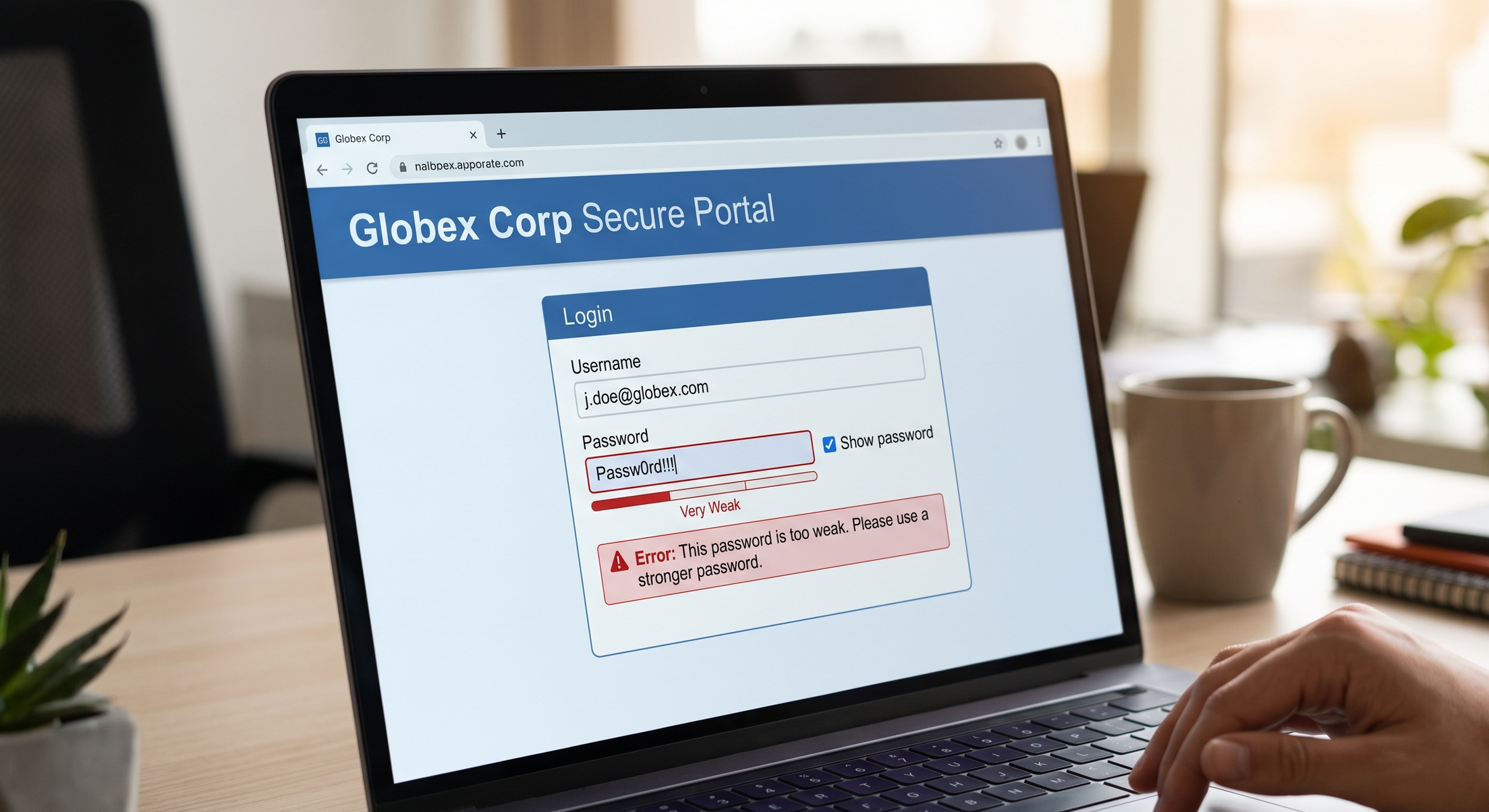
Let me ask you something. If I handed you a single key that opened your house, your car, your mailbox, and your safe deposit box, would you make copies and hide them under every doormat in the neighborhood?
Of course not. But that’s exactly what most of us do with passwords.
I’ve been in technology for over 30 years — I taught myself to code back when your only teachers were library books and error messages — and if I had a nickel for every time someone told me, “I just use the same password for everything so I don’t forget it,” I could retire to a beach somewhere. I get it. Passwords are annoying. But stick with me for a few minutes, because this is one of those things where a small change makes a huge difference.
Why Passwords Fail (Hint: It’s Usually Not Hackers in Hoodies)
Here’s the thing the movies get wrong. Most password theft isn’t some genius typing furiously in a dark room. It’s much more boring than that.
What actually happens: some website you signed up for years ago — a forum, a shopping site, that app you used once — gets breached. Your email and password leak out. Then criminals take that exact combination and try it on your email, your bank, your Amazon account. It’s called credential stuffing, which is a fancy way of saying “trying the same key in every door.”
If you reuse passwords, one leaked password isn’t one problem. It’s every account you own, all at once.
The other failure? Passwords that are easy to guess. Your dog’s name plus your birth year is not a secret. It’s on your Facebook page.
Passphrases: Longer Is Stronger (and Easier to Remember)
Good news. The advice has actually gotten simpler over the years. You don’t need P@$$w0rd5 that look like a cat walked across the keyboard. You need length.
I golf, so let me put it in golf terms: all those symbols and capital letters are the $600 driver of passwords. Looks impressive in the bag, doesn’t fix your slice. Length is the swing. Fix the swing.
A passphrase is just a few random words strung together. Something like:
purple-tractor-coffee-lampshade
That’s easy for you to remember, easy to type, and brutally hard for a computer to crack. A short complicated password might take a cracking program hours. A long, random passphrase? Centuries. The math is firmly on your side.
The one rule: the words need to be random. “ILoveMyGrandkids” is sweet, but it’s also guessable. Grab four words that have nothing to do with each other and nothing to do with you.
Password Managers: The Junk Drawer, But Organized
Now, here’s where people usually push back: “I can’t remember a different password for fifty accounts!”
You’re right. You can’t. Nobody can. So stop trying.
A password manager is a program that remembers all your passwords for you, locked behind one strong master passphrase. Think of it as a little safe that lives in your pocket. You remember one good combination — the safe remembers everything else. It’ll even invent long, random passwords for each site and fill them in automatically, which honestly makes logging in faster than typing.
Here’s the part that surprises people: you may already own one. My house is an Apple house, and iCloud Keychain — built into every iPhone and Mac — does this for free. Android folks have Google Password Manager doing the same job. It’s already in your pocket, just waiting to be switched on.
“But what if the password manager gets hacked?” Fair question — I hear it hundreds of times. The reputable ones are built so that even the company itself can’t read your passwords. Is anything perfect? No. But keeping a different strong password on every account with a manager is miles safer than reusing one password everywhere, or keeping them on a sticky note under your keyboard. (I’ve seen that sticky note. Many times. You know who you are.)
The Never-Reuse Rule
If you take one thing from this post, take this: never use the same password on two accounts that matter.
Start with the big three:
Your email — because whoever controls your email can reset everything else
Your bank and financial accounts
Your main shopping accounts with saved payment cards
Give each of those its own long passphrase or a manager-generated password. Do it this week. Twenty minutes, tops, and you’ll have closed the door most criminals actually walk through. You can check the strength of your password right here as well as generate a variety of passwords to your style in my password checker tool.
You Don’t Have to Do This Alone
If setting up a password manager sounds like one more thing you’ll put off forever, I’d be glad to walk through it with you — patiently, in plain English, at your pace. That’s kind of my whole thing.
Submit your question and tag the related topic. We’ll get your digital life sorted out together.
Welcome to Everyday Tech, Clearly Explained
Michael from Indigo Solutions introduces the blog and what readers can expect — plain English explanations of everyday tech topics, no jargon required.
Hi, I’m Michael. I started Indigo Solutions on a single premise, make technology simple. I help everyday people get a handle on their technology — without the confusion, the jargon, or the feeling that you’re falling behind.
This blog is called Everyday Tech, Clearly Explained — and that title says exactly what it is. Twice a week, I’ll post a short article on a tech topic that comes up all the time. Things like:
Why does my phone keep asking me to update? What does “the cloud” actually mean? How do I know if an email is a scam? Is my password strong enough? What even is two-factor authentication — and do I need it?
These are real questions I hear all the time. And the answers don’t have to be complicated. I’m going to break them down in plain English — no tech degree required.
What to Expect Each Week
Posts go up every Tuesday and Thursday. Each one covers a single topic, written the same way you’d explain something to a friend. No long lists of steps that assume you already know what they’re talking about. No pushing expensive gadgets or apps that you don’t need.
Just the good stuff — what it is, why it matters, and what (if anything) you should do about it.
This blog is for anyone who uses AI, a phone, a laptop, or the internet — and wishes someone would just explain things clearly. Whether you’re running a small business, helping a family member with their device, or just trying to stay safe online, you’re in the right place. No prior knowledge needed.
Indigo Tip: Bookmark this page and check back every Tuesday and Thursday. You might be surprised how much you already know — and how simple the things you didn’t know can be.
Have a tech question? Ask Me Anything — I’m here to help.